HomeAtlas Coming to the App Store
Instructions

How it works

Task-based walkthroughs, from real screens. Four tasks below are illustrated from the shipping build; three more are written and awaiting their figures — we do not mock up screens we have not shot.

Task 1

Document your first equipment

  1. Tap Add and choose the camera capture.
  2. Take two photos: the unit itself, and the label with the model number (sticker, tag, or rating plate).
  3. Review what the scan read — model and brand are structured automatically, and you can correct anything before saving.
  4. Save. Recall checks, the maintenance schedule, and the replacement-cost outlook begin from this record.
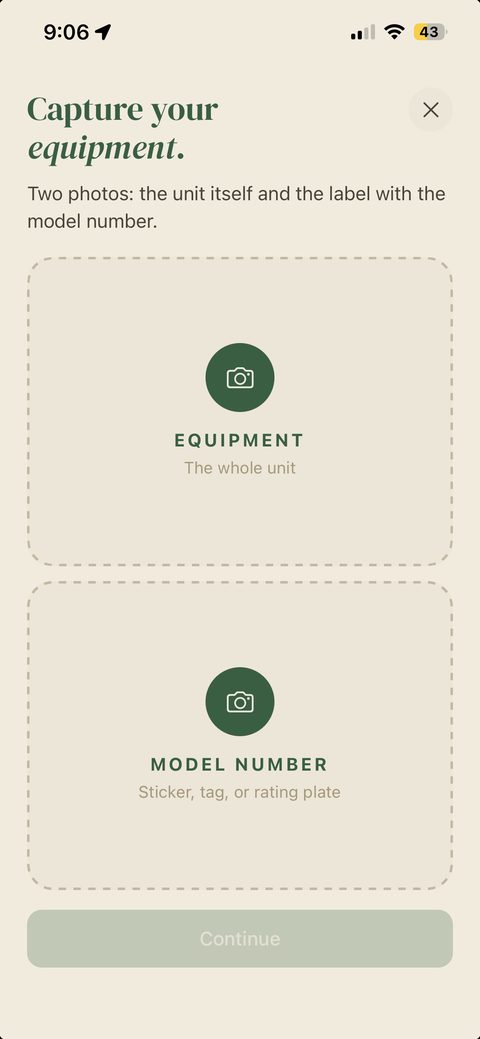
Capture screen requesting two photos of the equipment and its label.
Fig. 1 · The capture screen
Task 2

Read a scan result

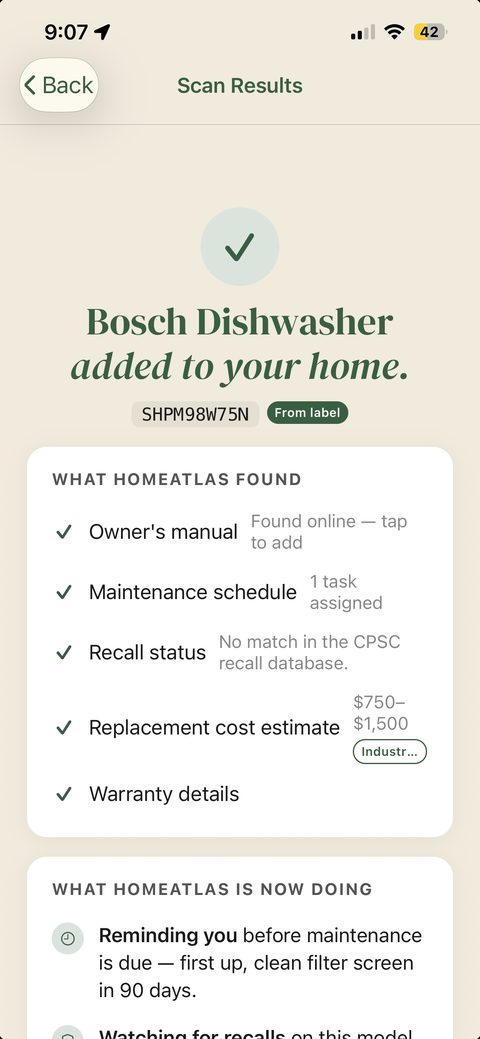
  1. After a scan, the result lists what HomeAtlas found: the owner’s manual (found online — tap to add), the maintenance schedule, recall status against the CPSC database, a replacement-cost estimate, and warranty details.
  2. Below it, what HomeAtlas is now doing: reminders before maintenance is due, weekly recall watching on this model, lifespan tracking.
  3. Every line names its source.
Scan results listing manual found, maintenance assigned, no CPSC recall match, replacement estimate.
Fig. 2 · Scan results
Task 3

Ask a question

  1. Open an item and tap Ask about this item, or start from a quick chip like Error code or Leak.
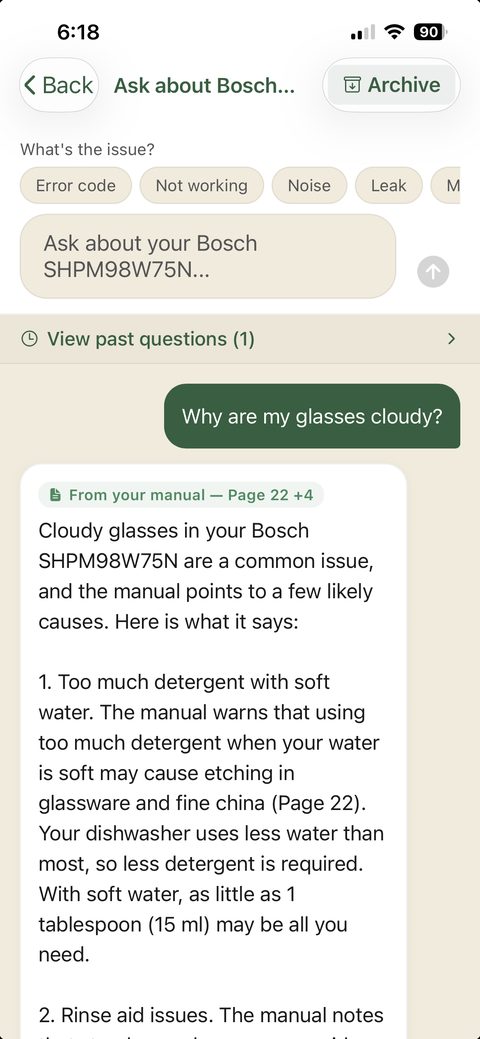
  2. Ask in plain language — "Why are my glasses cloudy?"
  3. The answer arrives badged with its source. Green means it came from your own manual, with tappable page citations.
  4. If the answer is not in your documents, HomeAtlas says so instead of guessing.
A cited answer badged From your manual, Page 22.
Fig. 3 · A cited answer
Task 4

Read a forecast

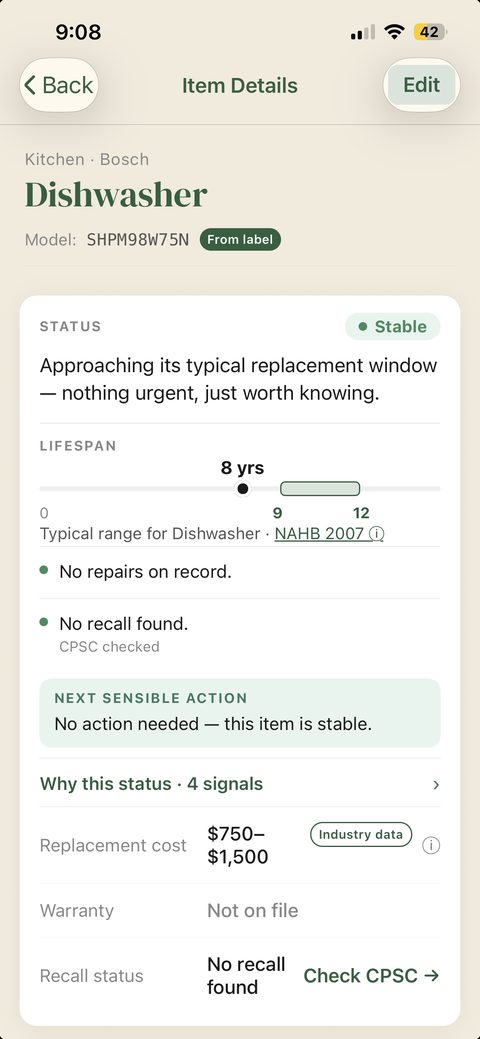
  1. Open any item’s detail. The lifespan band shows where the item sits against the typical range for its type — with the source of that range named.
  2. The replacement cost is a range for like-for-like installed replacement, with its source shown.
  3. Where there is not enough data for a number, the app says "not enough data" — it never invents one.
Item detail with lifespan band, replacement range, and recall status.
Fig. 4 · Item detail
Task 5

Upload a manual

  1. Open the item → Documents → add the PDF manual you have, or accept one HomeAtlas found online.
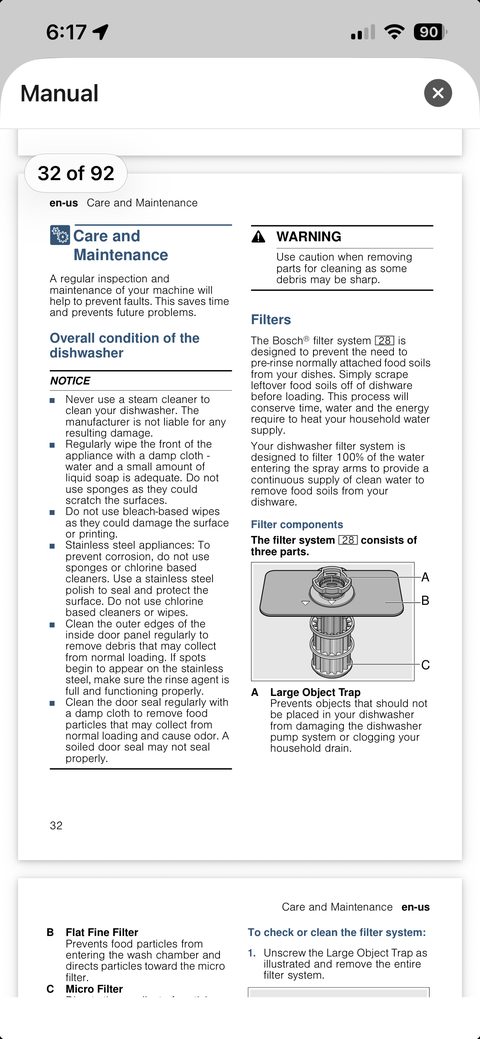
  2. Once indexed, answers to your questions can cite it to the page.
The Bosch owner's manual open in the app at page 32 of 92, showing the Care and Maintenance section and filter diagram.
The manual, in the app — answers cite into pages like this one.
Task 6

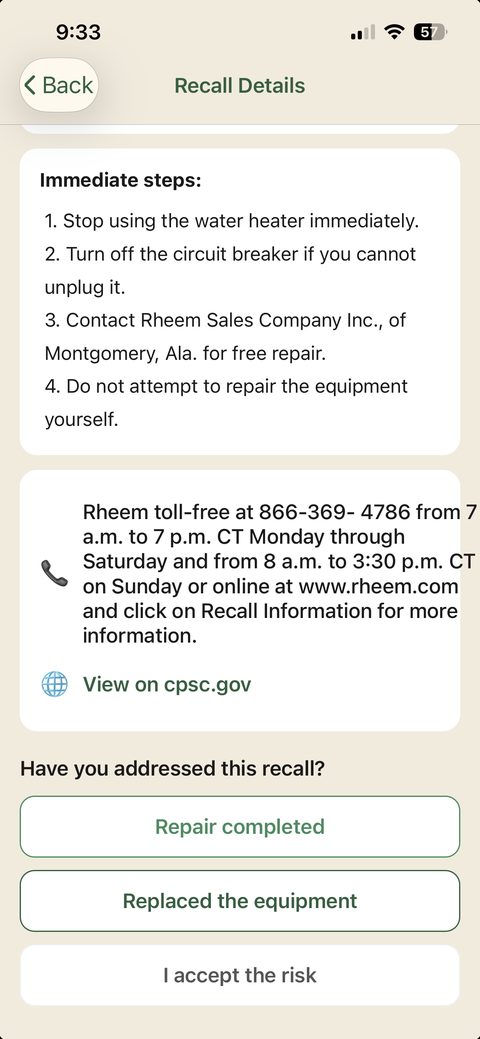
Respond to a recall alert

  1. Documented equipment is checked against CPSC recall data; a match raises an alert on the item.
  2. The alert links the underlying CPSC notice so you can verify and act on the official instructions.
Recall detail: immediate safety steps, the manufacturer contact line, and buttons to mark the recall repaired, replaced, or acknowledged.
Fig. 6 · The recall detail — steps, contact, and closing the loop
Task 7

Export your vault

  1. Settings → Your Data → Vault Export.
  2. The archive is assembled on your device: browsable offline HTML, machine-readable JSON, and optionally your attachments.
  3. The format is publicly documented — see the export schema — and export is never paywalled: it works subscribed, trialing, expired, or cancelled.
Figure pending — shot from the shipping build to follow
Fig. 7 · Reserved